
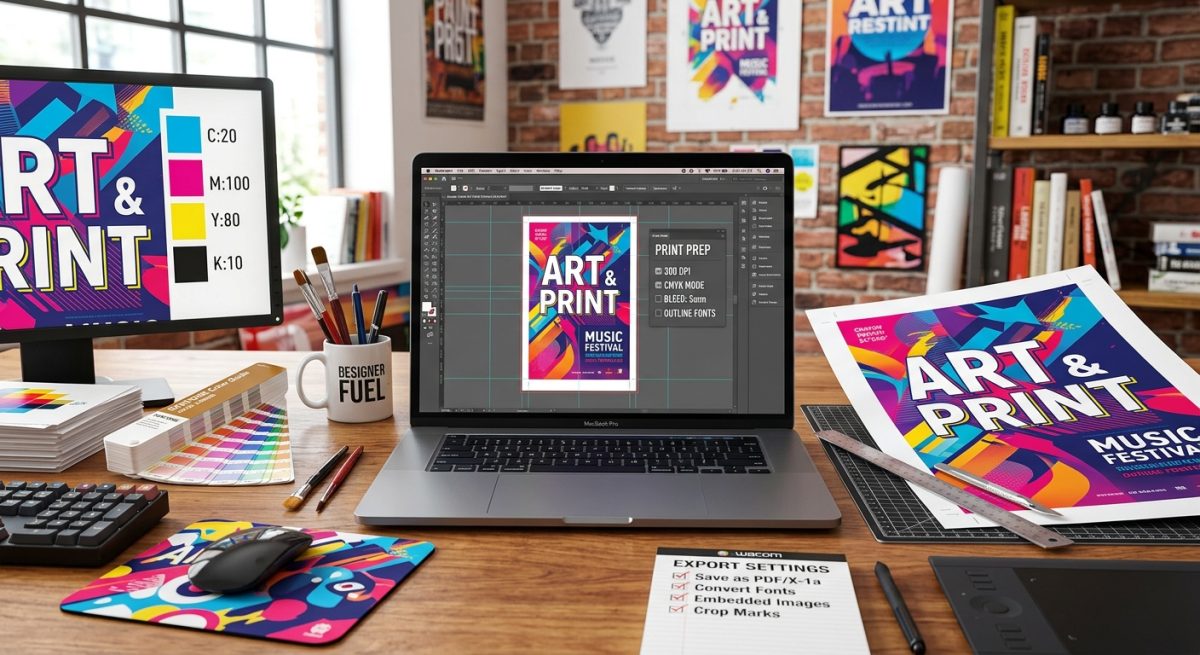
How to Prepare Graphic Design Files for High-Quality Poster Prints
A poster can look sharp on your laptop and arrive with fuzzy photographs, dull colors, or an awkward white edge. Those surprises usually begin in the artwork file. A few careful checks before export can protect the design you spent hours building and save you from paying for a second print run.
Preparing artwork for print means connecting your design choices to a physical result. The finished dimensions affect image detail. The paper affects color. Trimming affects anything near the edges. This guide walks through those decisions so you can hand over a file that is ready for production.
Three Checks That Protect Your Print
- Check image resolution at the finished poster size.
- Use the printer’s color, bleed, and safety specifications.
- Inspect the exported PDF before sending it.
Start With the Printer’s Specifications
Before adjusting the artwork, get the production requirements from your print provider. Ask for the finished dimensions, accepted file format, required bleed, recommended image resolution, and color instructions. A downloadable template can remove much of the guesswork.
Confirm the paper or other material, too. A glossy stock and an uncoated stock will not reproduce the same artwork identically. Texture, paper color, and surface finish all influence the appearance of photographs and solid backgrounds.
If the printer provides an export preset or an ICC color profile, keep it with your project files. An ICC profile describes a color space or output condition. Using the requested profile helps the production workflow interpret your colors as intended.
Create the document at its final trim size whenever practical. For an 18 by 24 inch poster, the page should measure 18 by 24 inches before bleed. Check the orientation and units before you begin placing artwork. A mistaken document size can force changes throughout the layout.
Check Resolution Where the Image Will Print
Image resolution is about how many pixels occupy each printed inch. For artwork files, the useful measurement is pixels per inch, or PPI. Printer resolution uses dots per inch, or DPI. People often mix the terms, but they describe different things.
For posters viewed closely, 300 PPI is a common target for photographs. Larger posters viewed from farther away may work at lower resolutions. The right target depends on the printing process, viewing distance, and image content. Follow the provider’s recommendation instead of treating one number as a rule for every job.
Calculate the Pixels You Actually Need
Multiply the printed width and height in inches by the target PPI. An 18 by 24 inch photograph at 300 PPI needs 5,400 by 7,200 pixels. At 150 PPI, it needs 2,700 by 3,600 pixels. These figures describe the image area before any extra coverage needed for bleed.
Check effective resolution in your layout software. A photograph with 300 PPI at its original dimensions has only 150 effective PPI when enlarged to twice its width and height. Changing a resolution label without resampling does not create additional detail.
Resampling can add pixels, but it cannot reliably recover detail that the original photograph never captured. Inspect enlarged images for smeared textures, halos, and compression artifacts. A better source image is usually more dependable than aggressive sharpening.
Keep Text and Simple Graphics as Vectors
Vector artwork uses paths rather than a fixed pixel grid. Keep logos, lettering, and simple illustrations in vector form when your software and export workflow allow it. They can scale cleanly without the same resolution limits as photographs.
Check raster effects separately. Shadows, blurred edges, and some textures may use a resolution setting even inside a vector document. A sharp logo can still have a visibly rough shadow if that effect was rendered at a low resolution.
Prepare Color for the Actual Printing Workflow
Screens display color with light, usually through RGB. Many printing processes reproduce color with cyan, magenta, yellow, and black inks, known as CMYK. Some vivid screen colors fall outside what a particular printer and paper can reproduce.
That does not mean every poster must be converted to CMYK at the start. Some providers request tagged RGB artwork and manage the conversion themselves. Others require a specific CMYK profile. Ask which workflow they use, then prepare the file accordingly.
If you need to convert, use a color conversion command with the correct destination profile. Assigning a different profile changes how existing color values are interpreted. It is not a substitute for converting those values into the required color space.
Use a Soft Proof to Spot Color Changes
A soft proof simulates an output condition on your monitor using a printer and paper profile. It can help you spot muted greens, reduced saturation, or dark areas losing separation. A calibrated display makes this check more useful.
A screen preview still cannot reproduce paper texture or reflected light perfectly. For artwork where color accuracy matters, request a physical proof. Check skin tones, brand colors, gradients, and shadow detail under suitable lighting.
For small black text in a CMYK workflow, black ink alone often helps keep edges clean. Large dark backgrounds may benefit from a printer-approved rich black mixture. Avoid inventing a mixture with very high ink coverage. The acceptable limit depends on the output process and material.
Let the Finished Size Guide Your File Decisions
Choosing the dimensions for poster printing affects more than the amount of wall space you need. It determines how far images must stretch, how large text should appear, and how closely viewers are likely to inspect the result. Set those dimensions before making your final quality checks.
A 12 by 18 inch design enlarged to 24 by 36 inches doubles in each direction. Its raster images have half their previous effective PPI. Text and vector graphics can remain sharp, but photographs may become noticeably softer.
Changing the proportions creates a different problem. Moving from a square layout to a tall poster requires cropping or rearrangement. Stretching the entire design distorts faces, logos, and letterforms. Rebuild the layout around the new proportions instead.
Consider the viewing environment. A poster beside a checkout counter may be read at arm’s length. A poster mounted high on a wall needs a stronger headline and fewer small details. Print a section at actual size to judge image texture and lettering before committing to the full production run.
Add Bleed and Keep Content Inside the Safe Area
Bleed is artwork that extends beyond the finished trim edge. It gives the printer room to cut the sheet without exposing an unintended white strip. Background colors, photographs, and patterns that reach the edge should continue into this area.
A common bleed allowance is 3 mm on each side. Some providers request 0.125 inches, which is slightly larger, or a different amount entirely. Use the exact measurement in the printer’s specifications.
For a poster trimmed to 420 by 594 mm, a 3 mm bleed on all sides makes the artwork extent 426 by 600 mm. In layout software, keep the page at the trim size and set bleed separately. Extend the background to the bleed guides.
Give Lettering Room to Survive Trimming
The safe area sits inside the trim edge. Keep text, logos, and other critical content within it so small cutting variations do not damage the design. A 5 mm inset may be a useful starting point, but the provider’s requirement takes priority.
Frames and mounting can hide additional space around the edges. If the poster will sit behind a frame lip, allow for that coverage before placing small text near the border.
Thin decorative borders deserve extra care. Minor trim variation can make them look uneven. Moving the border farther inward or using a wider border can make those differences less noticeable.
Make Typography Clear and Reliable
Build a clear reading order. The headline should carry the main message. Supporting text should explain it. Dates, prices, locations, and contact information need enough size and contrast to remain readable in the intended setting.
There is no single minimum font size that suits every poster. Typeface shape, weight, distance, and background all affect readability. Light lettering over a busy photograph can fail even when the point size seems generous.
Print a sample of the smallest text at actual size. Stand at the expected viewing distance and read it without leaning forward. Check narrow letterforms, punctuation, and reversed white text especially carefully.
Embed Fonts and Preserve an Editable Copy
Embedded fonts help the PDF reproduce your lettering without requiring the print provider to have the same fonts installed. Check the exported PDF’s font information to confirm that fonts are embedded or embedded as subsets.
Some font licenses restrict embedding. Resolve that issue before delivery. If the printer requests outlined text, create a separate production copy and convert the lettering there. Keep your original file editable for corrections.
Outlining text does not repair spelling mistakes or weak typography. Read every line before conversion. Check for missing characters, hidden text overflow, and accidental substitutions after export.
Export a PDF That Matches the Production Requirements
Use your design application’s print PDF export workflow. A small file preset intended for online sharing may reduce image detail or apply unsuitable compression. Choose the printer’s supplied preset whenever one is available.
PDF/X-4 is a common choice in workflows that support live transparency and color management. PDF/X-1a uses a different approach, with flattened transparency and more restricted color handling. The printer’s accepted standard should decide which you use.
Official guidance on PDF export options explains the available PDF/X formats and the controls for marks and bleed. Use those settings to match the production specification.
Review the Settings Before Saving
- Page selection: Export the intended poster page or artboard without extra drafts.
- Bleed: Include the specified bleed and confirm that artwork fills it.
- Printer marks: Add crop marks only when requested, with the required offset.
- Image compression: Avoid downsampling below the agreed effective resolution.
- Color output: Use the requested conversion settings, profiles, and output intent.
- Fonts and security: Embed permitted fonts and avoid restrictions that obstruct production.
Use high-quality compression for photographs. Lossless compression can be useful for flat graphics or screenshots where sharp edges matter. Avoid flattening the whole poster into a JPEG merely to simplify delivery. That can turn crisp lettering into raster content.
If your document was built at a reduced scale, tell the printer the exact enlargement factor. Image resolution, bleed, and effects must all be assessed at the final output size. Full-size documents usually make these checks easier.
Inspect the Exported File Before Delivery
Open the exported PDF in a separate PDF viewer. Check its dimensions, page count, and orientation. Look at the full composition, then zoom into photographs, small text, and areas containing transparency.
Use a preflight tool if available. Check for missing font embedding, low-resolution images, unexpected color spaces, and incorrect page boxes. A successful export does not guarantee that every object meets the production requirements.
Inspect overprint settings, particularly white lettering and logos. White objects set to overprint can disappear in production. Output preview tools can help reveal these problems before the file reaches the printer.
Read the content again from the PDF. Confirm phone numbers, dates, prices, and addresses against the source information. If the poster includes a QR code, test a printed sample at its intended size.
Send Artwork You Can Print With Confidence
Give the final file a clear name that includes the project, dimensions, and version. State the intended trim size, quantity, material, and any special instructions in the order details. Archive the editable artwork and linked assets so later changes stay manageable.
Sharp poster prints begin with decisions made before export. Set the finished size, check image detail at that size, follow the color workflow, and leave enough room for trimming. Then inspect the actual PDF you will send. That final check gives your design the best chance of reaching paper exactly as you intended.