
How to Get Your Favicon Working Across Every Browser and Device
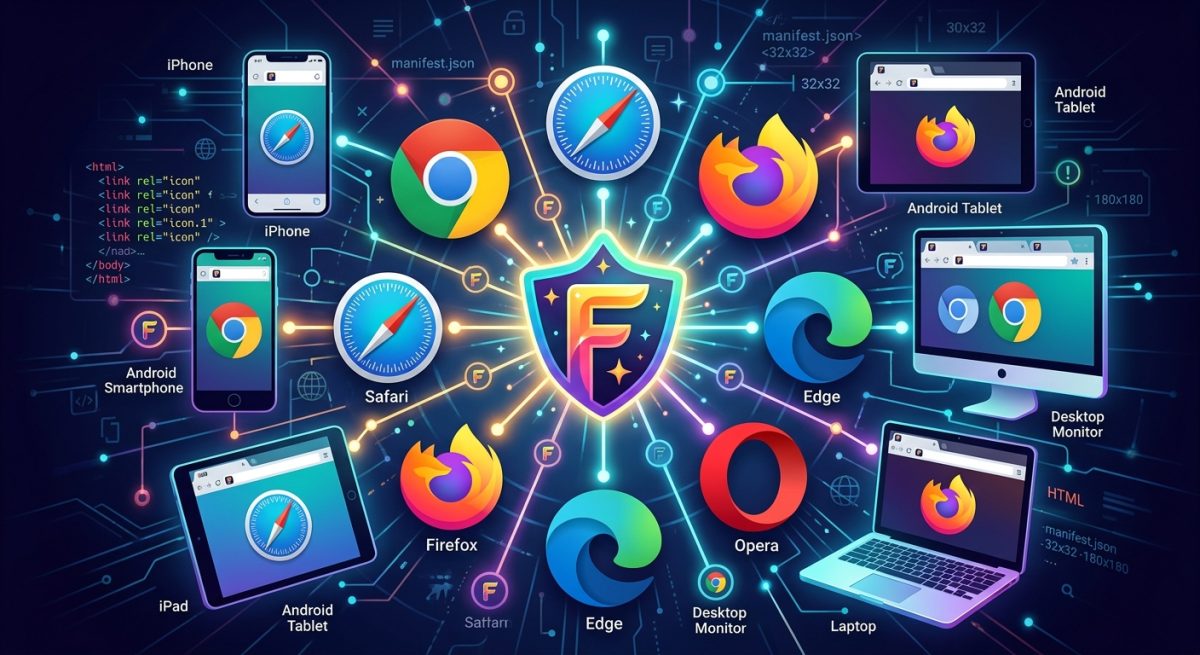
That tiny icon in the browser tab is carrying more weight than most people realize. Get it wrong and visitors see a blurry square, a broken image placeholder, or nothing at all, depending on which browser or device they are using. Get it right and your brand appears crisp and consistent whether someone pins your page to their iPhone home screen, bookmarks it in Firefox, or glances at a tab in Chrome. The process is completely repeatable once you understand the moving parts.
- ICO, PNG, and SVG each serve different rendering contexts , use all three together
- Specific pixel sizes matter for home screen icons on iOS and Android devices
- HTML link tags in your
<head>tell browsers exactly which icon to load and when - Cross-browser behavior varies significantly , test in real environments before going live
- A
site.webmanifestfile handles Android home screen icons in a clean, structured way
Why Favicons Are More Complex Than They Look
Most developers treat the favicon as a five-minute task. Drop a file in the root folder, maybe add one link tag, done. That approach works in roughly one browser on one platform. Every other combination of browser, operating system, and device type has its own expectations, and ignoring those means your icon either breaks or falls back to a generic browser placeholder.
The favicon spec has evolved across more than two decades. What started as a single 16×16 pixel ICO file in Internet Explorer has grown into a collection of formats, sizes, and link relationships that each target a different rendering context. Browser tabs, bookmarks, mobile home screen shortcuts, and address bars can each pull from a different source file. Understanding the full picture lets you write the right HTML once and cover nearly every scenario.
The File Formats That Actually Do the Work
Format choice is where most favicon confusion starts. Three formats are handling the practical workload right now: ICO, PNG, and SVG. Each fills a distinct role, and they work best together rather than in place of one another.
ICO Files and Why They Still Handle Legacy Support
The ICO format is old, but browsers have supported it for so long that it is essentially universal. The real advantage of ICO is that a single file can embed multiple resolutions inside it. A properly built ICO file typically holds 16×16 and 32×32 versions, sometimes 48×48 as well. Older browsers, legacy Windows environments, and third-party tools that display site icons will reach for the ICO file first, often without needing a link tag at all.
Place your favicon.ico in the root of your site. Most browsers find it there automatically, though explicitly linking it in your HTML is cleaner practice.
PNG Icons for Modern Browsers and Apple Devices
PNG is the format modern browsers prefer for high-resolution icons. Apple introduced the apple-touch-icon specifically for iOS home screen shortcuts, and it expects a PNG. A 180×180 PNG covers the current range of Apple devices. Android and Chrome also work reliably with PNG, particularly when the images are referenced through a web manifest file.
SVG Favicons as a Progressive Enhancement
SVG favicons are gaining ground because a single vector file scales to any size without quality loss. Chromium-based browsers and Firefox both support them now. The catch is that Safari still does not handle them the same way. Treat SVG as a modern enhancement rather than your only format. It pairs well with a dark mode media query inside the SVG itself, letting the icon shift colors automatically based on the user’s system preference without any JavaScript.
How the Three Main Favicon Formats Compare
| Format | Primary Use Case | Browser Support | Scales Cleanly |
|---|---|---|---|
| ICO | Universal fallback, legacy browsers | All browsers including older IE | No (raster, multi-size container) |
| PNG | Apple touch icons, Android, modern tabs | Chrome, Firefox, Safari, Edge | No (fixed pixel dimensions) |
| SVG | High-DPI screens, automatic dark mode | Chrome, Firefox, Edge (not Safari) | Yes |
The Pixel Sizes That Cover Real Devices
Size requirements vary by platform and context. Browsers rendering a favicon in a tab typically need a 16×16 or 32×32 image. Apple touch icons for current iPhones and iPads should be 180×180. Android home screen shortcuts specified through a web manifest work best with 192×192 and 512×512 PNG files, where the larger version is used in splash screen contexts on some devices.
You do not need to generate every size by hand. A range of tools will take a single high-resolution source image, typically 512×512 or larger, and output the full set of sizes automatically. Start with a clean square image, ideally vector-based, and let the tooling handle the scaling down from there.
Writing the HTML Link Tags That Control Everything
The link tags inside your document’s <head> tell browsers which icon to load and for which purpose. The rel="icon" attribute, part of the HTML icon linking standard, identifies a resource as a general favicon for the current page. Additional attributes like type and sizes help browsers choose the most appropriate option from the set you provide.
A solid baseline setup in your HTML looks like this:
<link rel="icon" href="/favicon.ico" sizes="any">
<link rel="icon" href="/favicon.svg" type="image/svg+xml">
<link rel="apple-touch-icon" href="/apple-touch-icon.png">
<link rel="manifest" href="/site.webmanifest">
The ICO line covers every old browser. The SVG line gives modern browsers a scalable version that adapts to dark mode. The apple-touch-icon line handles iOS home screen bookmarks. The manifest line points to your web app manifest, which handles Android icon declarations through a separate structured file.
Your site.webmanifest is a plain JSON file. It should include an icons array pointing to your 192×192 and 512×512 PNG files, each with its correct MIME type declared. Chrome on Android reads this file when someone adds your site to their home screen.
Cross-Browser Inconsistencies That Catch Developers Off Guard
Reading the documentation is one thing. Watching how different browsers actually interpret your favicon setup is a different situation. Safari on macOS and iOS caches favicons aggressively. You can update your icon file and still see the old version in Safari for hours afterward. Hard refreshes and clearing the browser cache are sometimes the only way to force an update during development.
Firefox has its own priority logic when multiple icon link tags are present. Chrome and Edge handle SVG favicons differently from Firefox in some edge cases. Certain older Android browsers ignore the manifest entirely and fall back to looking for a file named favicon.png in the root directory. Opera GX, Brave, and other Chromium forks behave consistently with Chrome in most cases, but tab bar styling and new tab page behavior can still vary.
This is the scenario where running your setup through a favicon compatibility checker pays off. Rather than manually opening ten browsers on multiple devices, a dedicated testing tool shows how your icon actually renders across different environments and flags missing sizes or format problems before they reach your users.
How Mobile Home Screens Handle Icons Differently
When someone taps “Add to Home Screen” on an iPhone, the device does not grab your regular tab favicon. It looks specifically for a file declared with rel="apple-touch-icon". If that tag is missing, iOS will attempt to find an apple-touch-icon.png in your root directory. If that is also absent, it takes a screenshot of the visible page and uses that as the icon, which almost never looks deliberate.
On Android, Chrome follows the web manifest entirely for home screen icons. The manifest declares your app name, theme color, and the icon files Chrome should use at each size. Without a valid manifest, the experience on Android becomes unpredictable. Setting this up correctly once means users on both major mobile platforms get a proper icon without any further work on your end.
Dealing with Favicon Caching During Development
Favicon caching is aggressive by design. Browsers cache icons separately from standard page assets, and the cache lifetime can stretch long enough to seriously disrupt your iteration process. A few practical approaches help keep things moving during development:
- Append a version query string to your favicon URL in the link tag, such as
favicon.ico?v=2, to force browsers to treat it as a new resource - Open the browser developer tools, go to the network panel, enable “Disable cache,” and reload the page with the panel open
- Test in a private or incognito window, which begins with a completely fresh cache each session
- On Safari, use the Develop menu to empty caches directly without affecting other browser state
Testing Dark Backgrounds Before Your Icon Ships
Icons that look clean on a white browser chrome can disappear entirely on dark mode interfaces. Chrome’s dark mode shifts the browser frame to near-black. If your favicon has no background and uses dark colors for the design, it becomes invisible against that surface.
Test your favicon against both light and dark browser backgrounds before pushing to production. An SVG favicon with a prefers-color-scheme media query embedded inside it handles this automatically by shifting colors based on the user’s system setting. For PNG and ICO formats, use a version with a subtle border, a colored background fill, or a design that reads clearly on any surface color.
Icons that look fine in isolation sometimes disappear in a tab row crowded with other sites. Open ten tabs on a dark-mode browser and check how your icon holds up in that real-world context. Contrast and legibility at 16×16 pixels is a different design problem than how the icon looks at full size in your graphics editor.
Your Favicon Is the First Brand Signal a Visitor Sees
Before a user reads a headline or registers the layout, they have already seen the favicon in the tab. It is a small detail, but it is one of the first impressions your site makes. A blurry or missing icon signals that something is off. A sharp, consistent icon across tabs, bookmarks, and home screen shortcuts tells visitors the site is put together with attention to detail, and that perception carries through the rest of their visit.
Getting the implementation right does not require extraordinary effort. It requires understanding which formats cover which environments, writing the right link tags, building a proper web manifest, and testing the result in the places users will actually see it. Take the time to check your work in a real browser on a real device. The difference between a favicon that works everywhere and one that half-works is almost always a missing format or a skipped link tag, and those are both fixable in minutes once you know what to look for.