
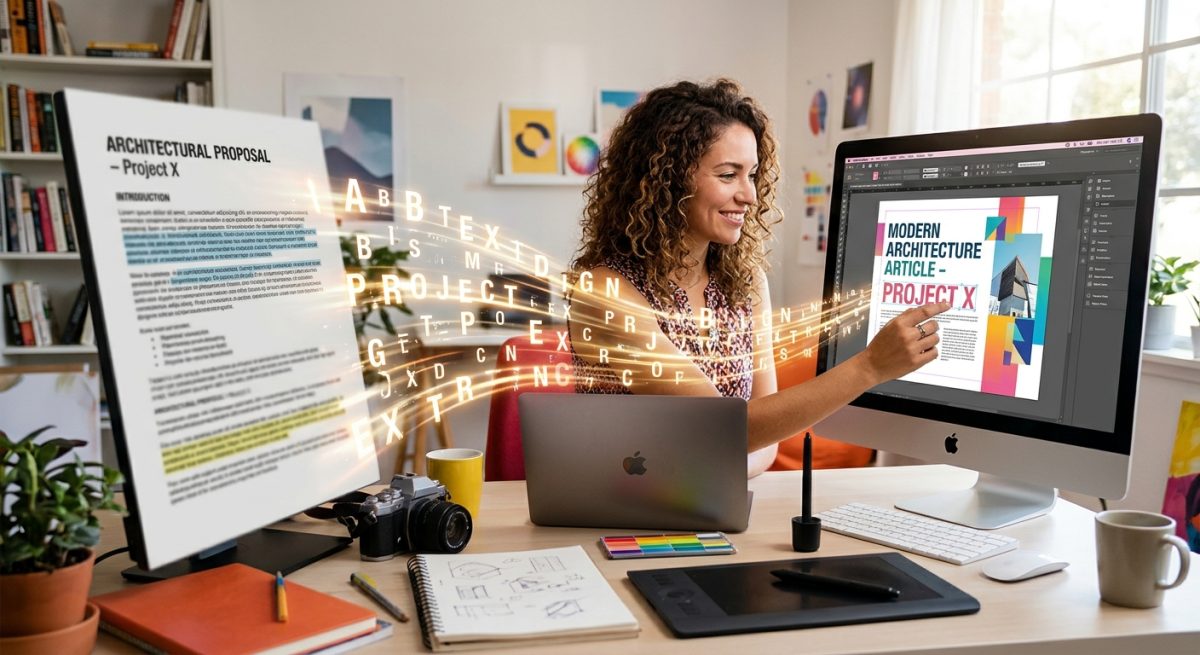
How to Extract Text from Scanned PDFs for Graphic Design Projects
The client loves the old brochure. They want its copy in a new layout by Friday. There is just one problem: every page is a scan, and clicking a sentence selects nothing. Before you spend an afternoon retyping, you can use optical character recognition, or OCR, to recover the words. The real craft comes afterward, when you check the copy and shape it for a fresh design.
Your Copy Recovery Plan
- Prepare clear scans before extracting the text.
- Check every recovered passage against its source.
- Apply fresh typography after the copy is approved.
Check What Kind of PDF You Have
A PDF can contain live text, page images, or a mixture of both. That difference determines your starting point. Open the file and try selecting a single word. Copy a paragraph into a plain text editor, then compare it with the page.
If the words paste correctly, you may already have usable text. You still need to inspect the reading order. A brochure with three columns might paste the first line from each column into one confusing sentence.
If nothing selects, the page may contain only an image. OCR reads the visible letter shapes and attempts to turn them into text. The W3C describes this process in its guidance on text recognition, including checks for conversion accuracy and reading order.
Some scanned PDFs already have a hidden text layer. Selection alone does not prove that layer is accurate. Try copying a heading, a paragraph, and a small caption before deciding whether to use it.
Define the Copy You Need Before Processing Pages
You rarely need every word from an archived layout. A new flyer might need the opening paragraph, service descriptions, and contact details. Extracting unrelated pages creates extra proofreading work and makes outdated material easier to miss.
Keep the original PDF untouched. Create a working copy and give it a clear filename. Record the source page for each passage you recover. A small label in your working document, for example “Original page 4, product description,” makes later questions much easier to resolve.
Check with the client about which version is approved. An archived brochure may contain accurate wording but expired prices. OCR can recover that wording without knowing whether anyone should publish it again.
- Mark the pages and text blocks needed for the new design.
- Separate body copy from captions, footnotes, and contact information.
- Flag dates, prices, claims, and specifications for client review.
- Confirm that you have permission to reuse the supplied material.
Prepare Scans That Give Letters a Fair Chance
Clear source material reduces correction work. Start with the best available file. A scan exported from an archive may retain more detail than a screenshot pasted into an email.
If you can rescan the printed piece, begin around 300 pixels per inch for ordinary body text. Treat that as a starting point. Tiny captions, faint printing, and damaged originals may need a different approach. Check whether individual letter shapes remain distinct when you zoom in.
Straighten tilted pages and rotate sideways text. Crop away scanner borders and nearby objects. Keep punctuation and the ends of lines inside the crop. A missing period is easy to overlook once the passage moves into a new layout.
Adjust contrast with care. Heavy processing can erase thin strokes or close the gaps inside letters. Test one difficult paragraph before applying the same treatment to every page. Enlarging a blurry image cannot restore detail that the scan never captured.
Choose an Extraction Approach That Fits the Source
| Source Condition | Starting Approach | Main Review Task |
|---|---|---|
| Selectable text that copies cleanly | Extract the existing text. | Check sequence and missing passages. |
| Clear scan with a simple layout | Run OCR on the required pages. | Check characters and paragraph boundaries. |
| Multiple columns or scattered captions | Process separate text regions. | Rebuild the intended reading order. |
| Damaged print or decorative lettering | Test OCR, then manually transcribe unclear sections. | Compare every uncertain word with the original. |
Extract a Test Passage Before Committing to the File
Choose a representative page with a heading, body copy, and a caption. This reveals more than testing a page containing only large, clean text. Select the document language if your OCR tool offers that setting.
At this stage, free OCR is an option for extracting text before checking character accuracy, paragraph breaks, and typography. Review upload requirements and privacy terms before submitting client material. Use an approved local workflow when the document cannot leave your device.
Keep the first extraction as an untouched reference. Make a separate copy for editing. That gives you a way to distinguish recognition errors from changes introduced during cleanup.
- Process the test page or a clearly defined text region.
- Save the recovered text alongside its source page number.
- Compare a complete paragraph and its nearby caption with the scan.
- Adjust the source preparation or extraction settings if errors repeat.
- Process the remaining required pages using the approach that worked.
For folded brochures, handle each panel according to its role. The visual order across a flattened sheet may differ from the order a reader follows after folding. Label the panels before assembling the recovered copy.
Proofread Characters Before Editing the Message
Open the scan and extracted copy side by side. Read in short sections, checking each against the original. Spellcheck helps, but it cannot catch every substitution. A mistaken word can still be a valid word.
Pay particular attention to short strings. A single wrong character in a product code, email address, or phone number can make that detail unusable. Check these strings character by character, even when the surrounding paragraph looks clean.
- Compare the letter O with zero, and lowercase l with uppercase I or one.
- Check whether rn has become m, or cl has become d.
- Inspect currency symbols, decimal points, percentages, and units.
- Verify accents, apostrophes, quotation marks, and punctuation.
- Look for missing captions, footnotes, and text printed over images.
Mark anything you cannot read with a clear query. Do not guess at a faded price or an ambiguous technical term. Ask the client to confirm it against another record.
Keep corrections separate from copy revisions. First establish what the source says. Then make approved changes to tone, length, or outdated information. This keeps the review manageable and avoids silent changes to meaning.
Repair Paragraphs Without Flattening the Structure
Scanned layouts often produce a return at the end of every printed line. Paste that text into a wider frame and the paragraph becomes a stack of short fragments.
Join lines that belong to the same paragraph. Preserve real boundaries between paragraphs, headings, addresses, and separate items. If the extraction uses different characters for line breaks and paragraph breaks, inspect them before running replacements.
Avoid replacing every return with a space across the entire document. That can attach a heading to its body copy or merge several address lines. Work through one section first and confirm the result.
Check words split at the ends of printed lines. “Print-” followed by “ing” should become “Printing.” A hyphen in “client-approved” may belong to the word and should remain. Context decides the correction.
Reassemble columns and captions deliberately. Keep each caption attached to the correct image reference in your working copy. A perfectly spelled caption still creates a problem if it describes the wrong photograph.
Format the Clean Copy for Its New Design
Once the text is checked, bring it into your design application as unformatted text when possible. This helps prevent stray fonts, odd spacing, and unnecessary formatting from entering the new document.
Build paragraph styles for headings, body text, captions, and supporting details. Use character styles for repeated treatments within paragraphs. Consistent styles make later changes easier when a client asks for a different typeface or tighter spacing.
Choose typography for the new format. Copy recovered from a wide brochure panel may need different line lengths in a narrow flyer. Set a readable body size and suitable leading, then assess the text at its intended viewing size.
Check whether the chosen font contains every required character. Accented names, currency symbols, and specialist notation deserve a close look. Review typographic quotation marks and apostrophes after the wording is stable.
Keep spacing under the control of the layout. Remove repeated spaces used to imitate alignment. Use tabs, indents, or appropriate layout structures where the content requires them. Let the new text frames determine ordinary line wrapping.
If the copy does not fit, review the available space and discuss edits. Avoid squeezing paragraphs through excessive tracking changes or stretched letterforms. Those shortcuts can make a polished layout tiring to read.
Review the Export With Fresh Eyes
Export a proof and inspect the actual output. Text can disappear through overset frames, missing glyphs, clipping, or export mistakes even after the working document appears correct.
Make one pass for content and another for presentation. During the content pass, compare the proof with the approved copy. During the presentation pass, inspect line endings, isolated words, heading placement, caption alignment, and spacing.
Check printed work at actual size. Review digital work at a realistic viewing scale. Tiny text that appears comfortable at high zoom may be difficult to read in the finished piece.
Send unresolved factual queries with the proof. Keep the approved text file, original scan, and final design together in the project archive. The next revision will be easier when nobody has to repeat the recovery work.
Give Archived Words a Fresh Place on the Page
Recovering copy from a scan is a sequence of small decisions. A clear source helps OCR read the letters. Careful proofreading protects the message. Thoughtful formatting gives that message room in the new design.
The finished result should feel easy to read and easy to revise. With the source preserved and the copy checked, an old brochure can become useful working material for the next project.